


Chapter 1 takes you on a tour of LDPS2. It is an introduction to livestock planning and a quick overview of the spreadsheet's functions. It is suited for first-time users and introduces the more detailed presentation of chapter 2.
Chapter 2 explores LDPS2 in details. Every sheet and module is explained quoting examples and tips to use the guide more efficiently.
Chapter 3 discusses some of the most common problems you are likely to encounter using LDPS2 and Excel. Possible causes and solutions are given for each type of problem. A few warnings are issued concerning the uses and misuses of LDPS2 as a planning tool.
A complete case study of China using LDPS2 is given in chapter 4. This case is based on actual data, so tips to use LDPS2 are explained thoroughly.
The following conventions are used throughout the guide:
Range of cells is given in matrix notation, like this: [N30 : X54]. This refers to a range of cells beginning in row 30, column N and ending in row 54, column X.
CAUTION |
The Caution box contains critical information about the operations described. Failure to comply with these instructions may result in a malfunction of LDPS2. |
TIP |
The Tip box tells you about methods that are easier, faster and more efficient. |
Within the spreadsheet, the following conventions are used:
LDPS2 stands for "Livestock Development Planning System, version 2". It is the second version of a software originally written in Basic. The new version is an Excel 5 workbook containing six visible and two hidden sheets as described in Table 1.
| Sheet name | Status | Content |
| Welcome | Visible | Logo, starting tips and usage instructions. |
| Labels | Visible | LDPS2 user-defined labels. |
| Parameters | Visible | Sheet containing most of LDPS2 parameter sets |
| Resources | Visible | Sheet containing equations sets for determining available resources, assigning available resources to the various animal systems and calculating the manure output. |
| Results | Visible | Screen for selecting and displaying the results of Demand-driven routine, the Resource-driven routine and Herd Growth Routine. |
| Sensitivity | Visible | Sheet for performing sensitivity analysis |
| Calculations | Hidden | Basic equation sets of
LDPS2. To be edited only by advanced users only. |
| Macros | Hidden | Macro commands of LDPS2.
To be edited only by advanced users only. |
Some sheets have been hidden to protect the spreadsheet. However, altering any of the sheets may cause LDPS2 not to work correctly. It is strongly recommended that you make a backup copy of the original version of LDPS2 and that you keep it unmodified in a safe place.
LDPS2 has been tested using Excel versions 5 and 7. If you are using the English Excel, we recommend that you use the English version of LDPS2, since some keywords are not automatically translated. LDPS2 is currently available in English, French and Spanish. Please contact FAO to obtain the appropriate version (see the following "Finding help" for the address).
Minimum requirements for using LDPS2 are:
LDPS2 is distributed as a self-decompressing archive named ldps2.exe. This archive contains only one file named "ldps2.xls". To decompress the archive, copy it into a folder of its own anywhere on your hard disk (for example, folder C:\LDPS2) and double-click on it from the File manager. The archive then decompresses itself and automatically creates the file "ldps2.xls". You are now ready to start using LDPS2 by double-clicking on the file "ldps2.xls". If Excel doesn't start automatically, you will have to first start Excel, and then open ldps2.xls from the "FILE_OPEN" menu.
For a list of possible problems and solutions, see Chapter 3: "Problem solving".
There are three sources of help for LDPS2 users:
FAO/AGA Henning SteinfeldFAO/AGA, Rome, Italy FAX: 396.5705.5749 E-mail: [email protected] |
Authors | |
|
Louis-Gilles Lalonde
Quebec, Canada E-mail: [email protected] |
Takuo Sukigara
FAO/AGA, Rome, Italy E-mail : [email protected] | |
This chapter is designed to give you a quick overview of the way LDPS2 works and how the spreadsheet is structured. A more advanced discussion on LDPS2 can be found in Chapter 2.
LDPS2 is a spreadsheet-based tool designed to help planners around the world simulate animal herd growth and structure. These simulations are based on a number of parameters, variables and equation sets. Parameters can be changed, while variables and equation sets cannot.
LDPS2 is an Excel spreadsheet, so it will not work with Lotus or Quattro Pro. You also need Windows (3.1, 3.11 or 95) to run it. You can start LDPS2 by double-clicking on the file "ldps2.xls" from the File Manager (Windows 3.1) or from the Explorer (Windows 95).
(1) Sheet "Welcome"
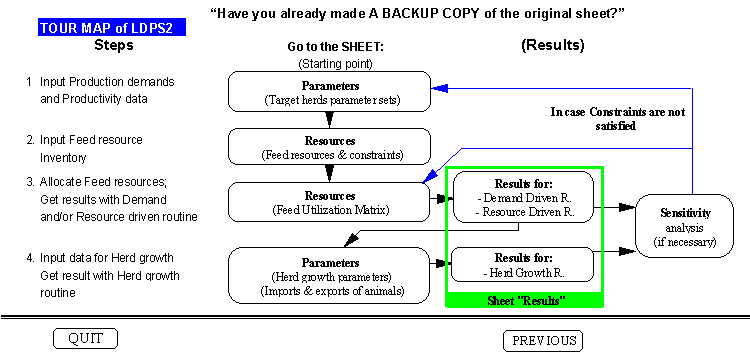
The first sheet displayed when starting LDPS2 is the Welcome Sheet. This sheet is a condensed version of the introduction chapter and is aimed at providing on-screen information to help you navigate within the file. You can jump from one screen to another by clicking the "Next" and "Previous" buttons. The fifth screen contains a Tour Map of LDPS2 (see Figure 1). The Map contains buttons to jump directly to the specified section of the spreadsheet. Use this Map to move around and to get familiar with LDPS2. You can also use the sheet tabs located at the bottom of the every sheet, as shown in Figure 2. These tabs show the name of each sheet. For example, clicking on the tab named "Labels" brings that sheet on top so you can see the content. You can display whatever sheet you like, whenever you wish. Switching from one sheet to the other has no impact on the way LDPS2 works.
The best way to get familiar with the spreadsheet is to start working with it. Since LDPS2 is shipped with a complete default data set, you can switch to the "Results" sheet and experiment with the different animal systems straight away.

(2) Sheet "Labels"
Jump to sheet "Labels" by clicking on the tab named "Labels". Figure 3 shows the upper-left part of the screen. This sheet is used to change the default names used by LDPS2 throughout the spreadsheet. For example, you can model up to four animal sub-systems for Dairy Cattle. By default, these sub-systems are named "System 1", "System 2" and so on. To change these defaults, simply type in a new name. For example, in the Dairy Cattle animal system, change "System 1" to "Nomadic" or "Farm A". This change is instantly updated throughout the spreadsheet, so every cell using "System 1" before will now show "Nomadic" instead.
Names of feedstuff and of dairy breeds can also be changed. Basic parameters defining each breed can be edited by clicking on the "Edit Breed data" button.

In Figure 3 above, system sub-types are named "system 1", "system 2", and so on. These names may actually differ from the ones displayed within your own version of LDPS2. These labels can be changed to whatever suits you. Changes made to labels do not affect the way LDPS2 works.
(3) Sheet "Parameters"
Sheet "Parameters" contains five sections, each containing a specific set of parameters. These sections are:
Figure 4 shows the upper left corner of sheet "Parameters". Columns A to F refer to the four animal systems of Dairy cattle : Column A shows the number assigned to each Parameter ; Column B contains the name of each parameter ; Columns C to F contain the parameters' actual values.

(4) Sheet "Resources"
Sheet "Resources" contains all the data, equations and parameters needed to set the quantity of feedstuff available for every animal system.
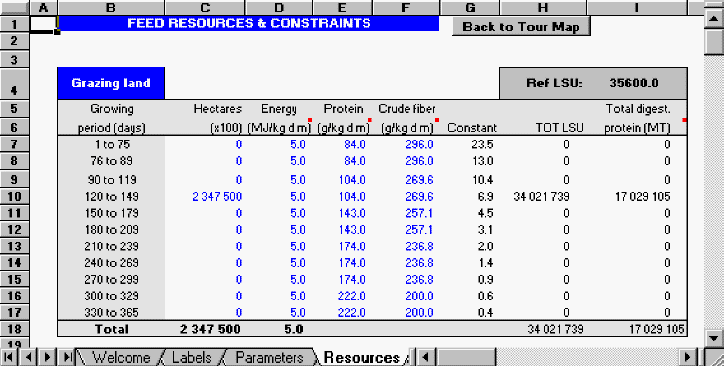
a) Quantities are entered in 100 hectares (Grazing land) or tons of dry matter, and LDPS2 converts it into total energy in LSUs1 and tons of digestible protein. Figure 5 shows the upper-left part of the sheet "Resources" where total available feedstuff is set for each feed type (range [B1 : J78]).
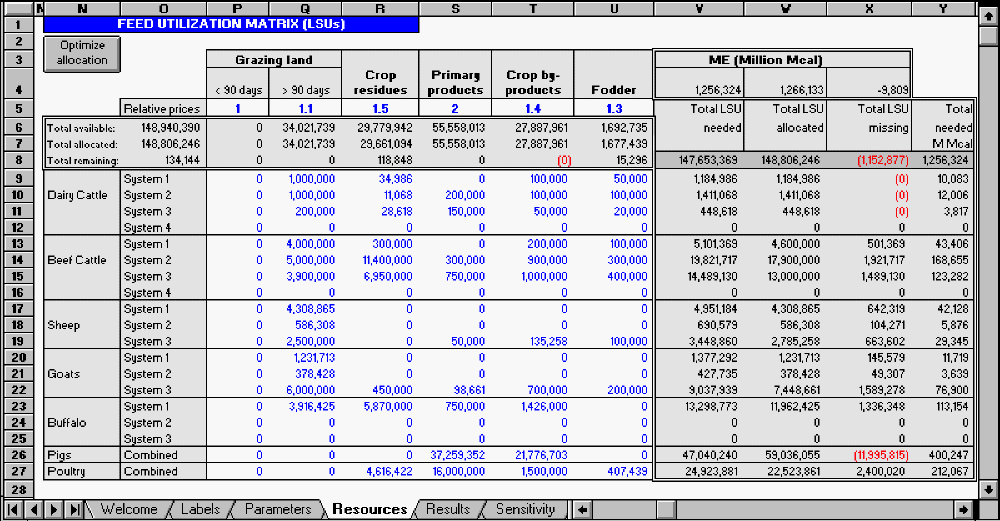
b) Allocation of available feedstuff is performed using the Feed Utilization Matrix (FUM, Figure 6) that can be found in range [N1 : X27]. Available feed can be allocated in two ways:
Allocated LSUs are then automatically converted by LDPS2 into tons of digestible protein (range [N30 : X54]. Protein allocation can not be set directly.
You can set minimum LSU allocation per animal system and per feed type in range [N57 : U80]. These minimum values are used by the optimization routine to ensure more realistic results. If you allocate manually the available resources, the minimum values are not used by LDPS2.
Sheet "Resources" also contains equations and parameters used for the calculation of manure output by the various animal systems. These calculations are performed in range [AH1 : AT231]. Manure output is also shown in the "Results" sheet.
(5) Sheet "Results"
Sheet "Results" shows results for all animal systems and products calculated by the Demand-driven routine, the Resource-driven routine and the Herd Growth routine. The sheet contains two sections: the upper-left section (range [B1 : J49], see Figure 7) shows selectable results in a concise way. Only one system is shown at a time. The displayed system is selected using the appropriate buttons (range [G1 : G4]). The second section (range [B60 : I163] and [R36 : Y321]) contains all the results for all systems. This section of the sheet shows results in a less aggregate fashion.
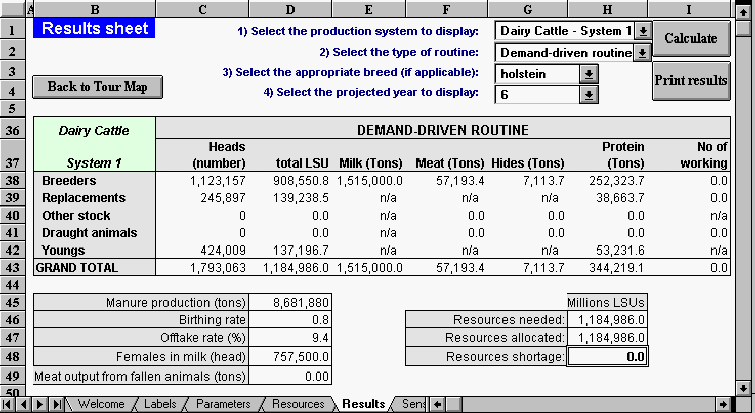
When choosing to display the Herd Growth results, LDPS2 unhides rows 6 through 35 (inclusive). These rows are normally hidden when showing Demand-driven results.
(6) Sheet "Sensitivity"
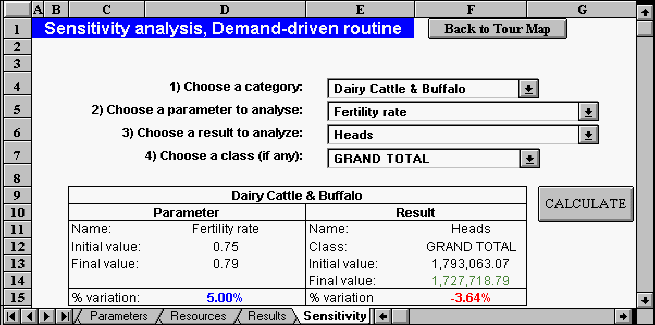
Once results have been calculated, you can perform sensitivity on selected parameters and results. Sensitivity analysis answers the following question: "How does a small variation in a parameter's value affect a given result's value?". A 5% variation in a given parameter may induce a 10% variation in a given result. That specific result would therefore be considered highly sensitive to that specific parameter's value. On the contrary, a 5% variation in a parameter's value may induce only a 0.5% variation in a given result. Such a result would then show a low sensitivity to that parameter.
Figure 8 shows sheet "Sensitivity". Sensitivity analysis is a four step process: first, you must select an animal category. Second, you select a parameter to analyze. Third, you select a result, and fourth, you select a class (this fourth step is applicable only for a certain number of results). You can change the level of sensitivity used by LDPS2. By default, this level is set to 5%. You can change this percentage to whatever you like, but in order for the sensitivity calculations to perform in a meaningful way, this percentage value should be kept small (not over 10%). Negative values can also be used for the percentage.
(7) Quitting LDPS2
Once you have finished working with LDPS2 and want to quit the spreadsheet, you may do so by choosing one of the following methods:
In any case, Excel will ask you if you want to save the changes made to the worksheet. If you want to keep the changes, you should select "Yes". If you do not want to keep these changes or do not recall having made any significant changes, select "No" (see 2.6 Saving your work).
The best way to learn how LDPS2 works and how to use it, is to actually use it. Try different things, change values, consult the "Results" sheet to see the impact of your changes and understand how the spreadsheet reacts. This is the fastest method for learning LDPS2.
Don't forget to make a copy of the spreadsheet first!
1 Livestock Standard Units; see chapter 2.3.1.2
