


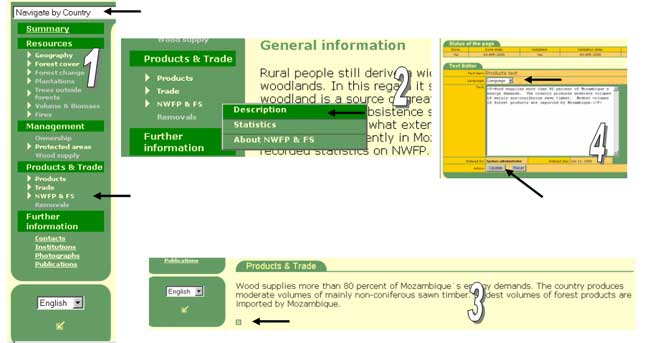
The data entry with using web browser is possible for texts, but not for numeric data (forest cover data and etc.). Using web browser for text entry can be done using any machine that has access to Internet. After logging to the system you have to select correct topic from the menu (for example > NWFP > Description, phases 1 and 2) and after this you have to select country or geographical area you are working with. See the instructions below the following figure.
Under each header there is a small square shaped symbol (phase 3) that will allow you to enter HTML text. By clicking this square shaped symbol you will get text editor window (phase 4) and now you are able to paste text including tags to the window. Or you can use this text editor window for making small corrections, if needed.
Figure 9. Updating texts, phases 1–4.
Phases
(1) Select Country and Topic
(2) Select Sub Topic
(3) Click small square under header (one to be edited)
(4) Paste text to the editor, select language and press Ok button
After cleaning HTML texts and tables, the aim is to move them to the database. This happens simply by copying HTML texts from the editor (Notepad, FrontPage) to the web text editor window. Copying command can be given by selecting edit and copy (or Ctrl+C). After this you have to select the language of text. The last step is to press Update button and after that the text is in the database.
